Connect a provider
A click-by-click tour of the integration wizard, using Amazon SES for email and Meta for social publishing as the worked examples. The same four steps apply to every provider.
Before you start
Have your provider credentials ready. For SES that means an AWS access key with SES send permission and a verified from-address; the in-app setup guide walks you through creating both. If you run separate environments, decide whether the integration is for one environment (say, a throwaway key for staging) or for the whole account.
1. Open Integrations
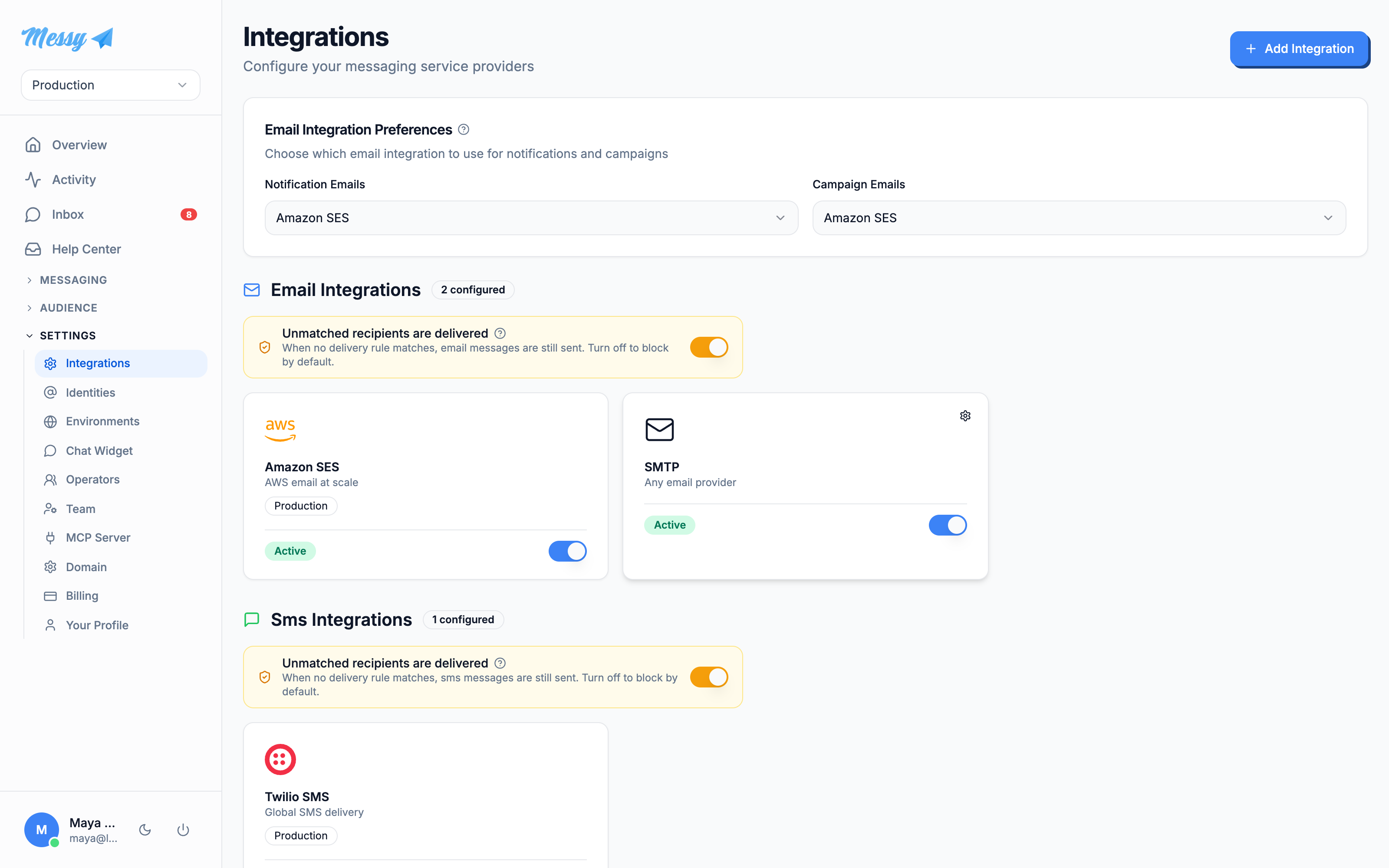
In the sidebar under Settings, click Integrations. The page lists every connected provider grouped by channel, with an active toggle on each card. Click Add Integration in the top right.
2. Pick a provider
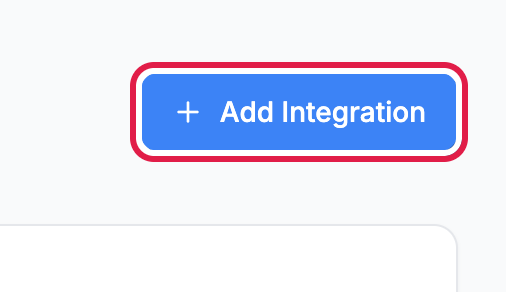
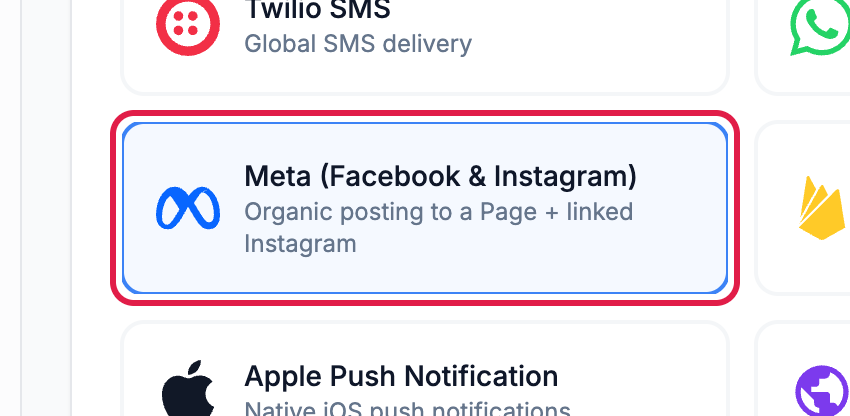
The wizard's first step shows every provider Messy can connect: Amazon SES and SMTP for email, Twilio for SMS, WhatsApp Business, Meta for social publishing, and Firebase, Apple Push and Web Push for notifications. Select one; it highlights in blue.
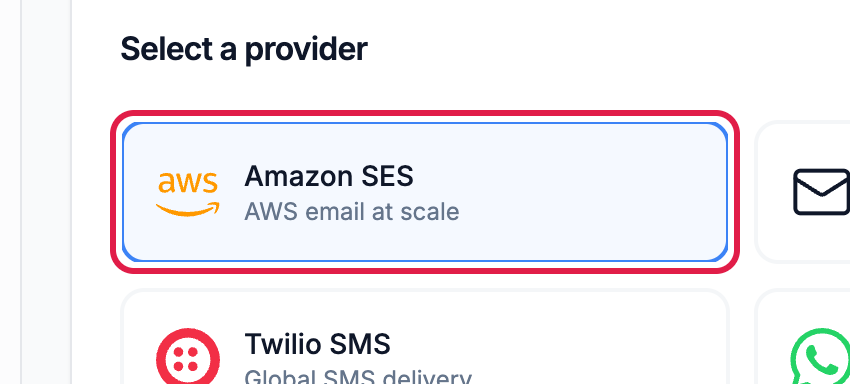
Below the grid, the Environment dropdown scopes the integration. Leave it on All environments to share one credential everywhere, or pin it to a single environment. Environment-scoped integrations win over account-wide ones when both exist. Click Next.
3. Configure it
Each provider asks for its own fields; a setup guide on the right explains where to find every value at the provider. For SES: the AWS region, the access key pair, and the verified from-address.
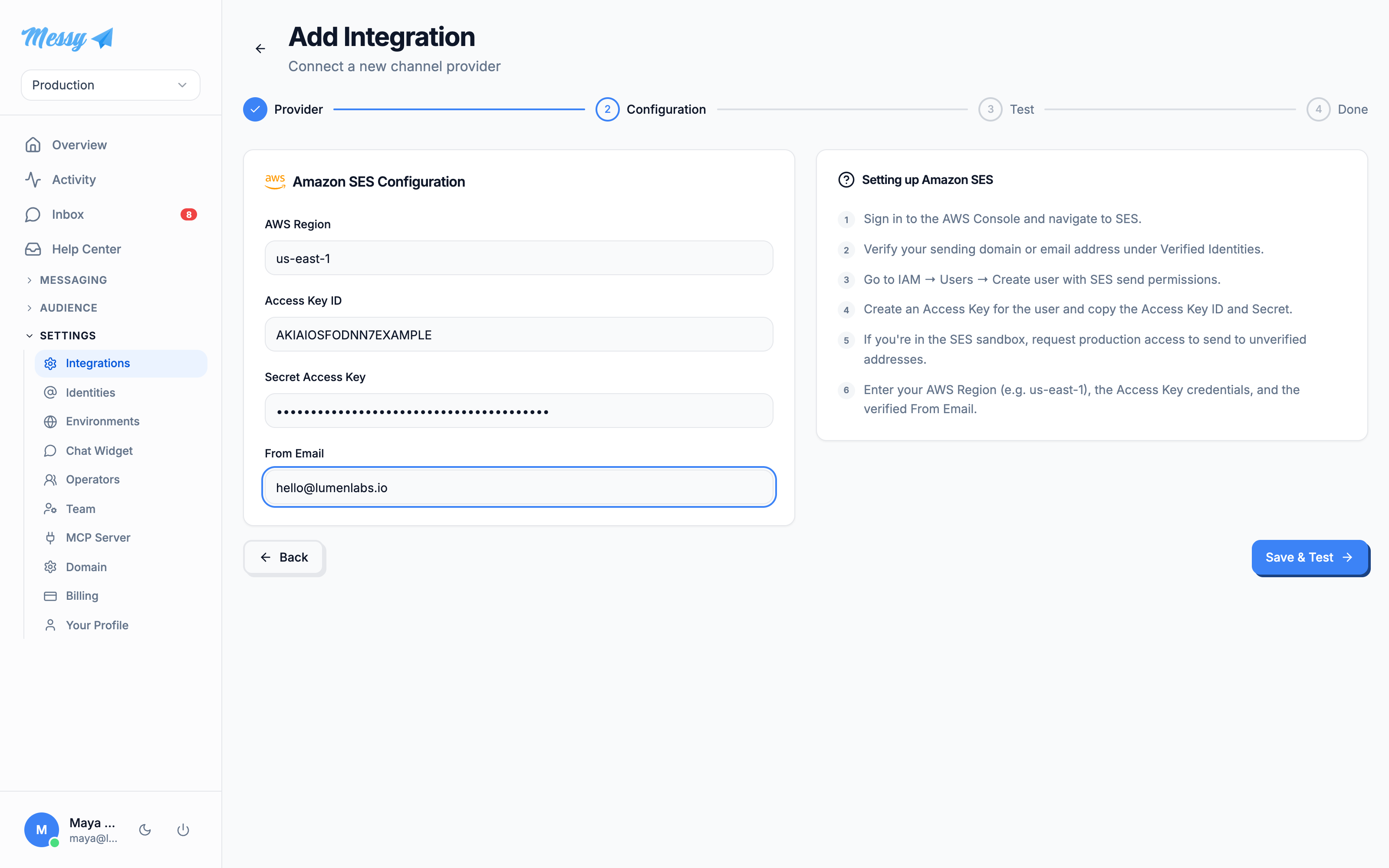
[FILTERED] for every secret field, and editing preserves any field you leave masked. See Bring your own keys.Click Save & Test to store the integration and move on.
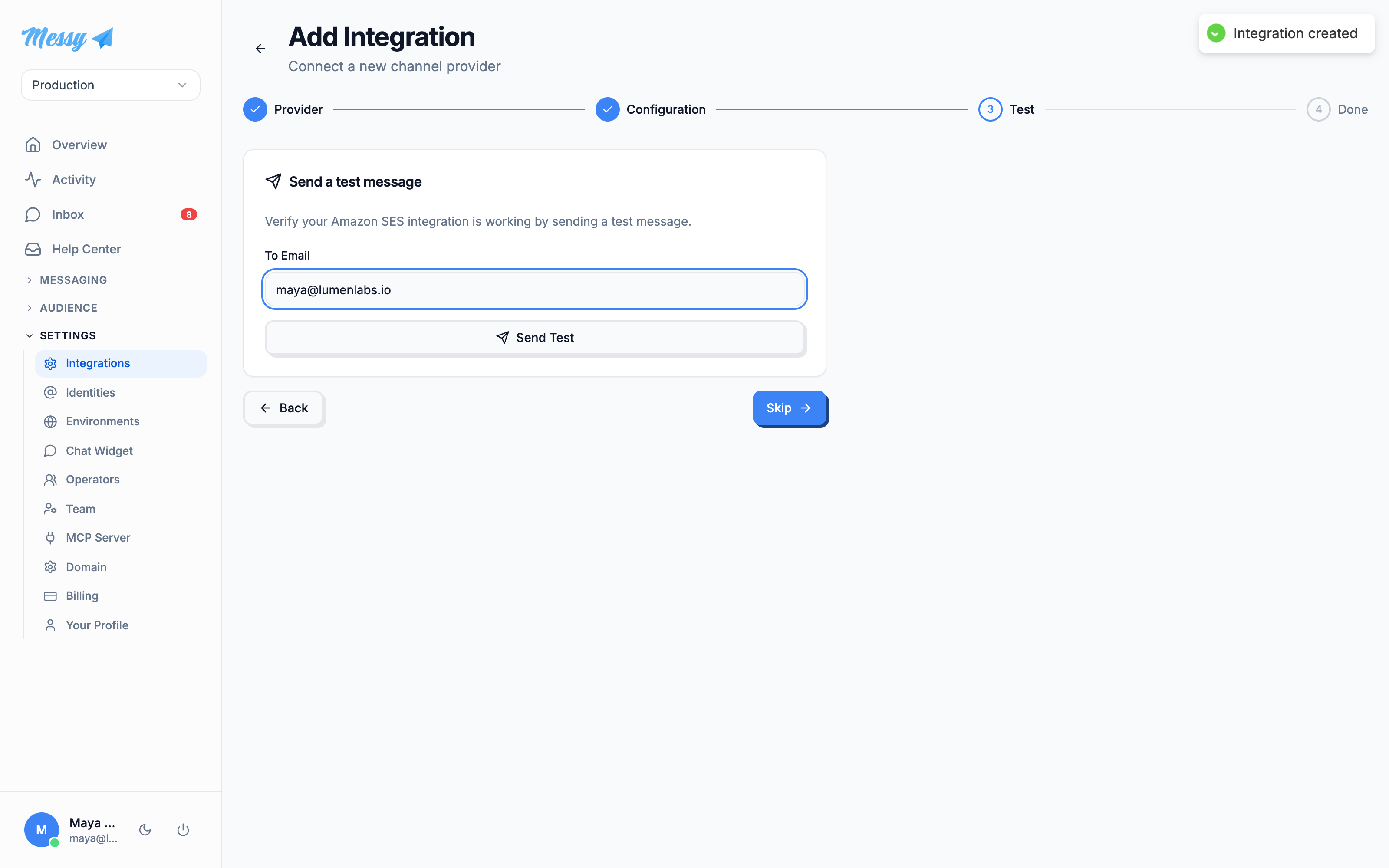
4. Send a test
For sending channels the wizard offers a one-off test delivery to an address or number you enter. If the provider rejects it, the error comes straight back so you can fix the credential before real traffic hits it. You can also Skip and test later from the integration card's menu.
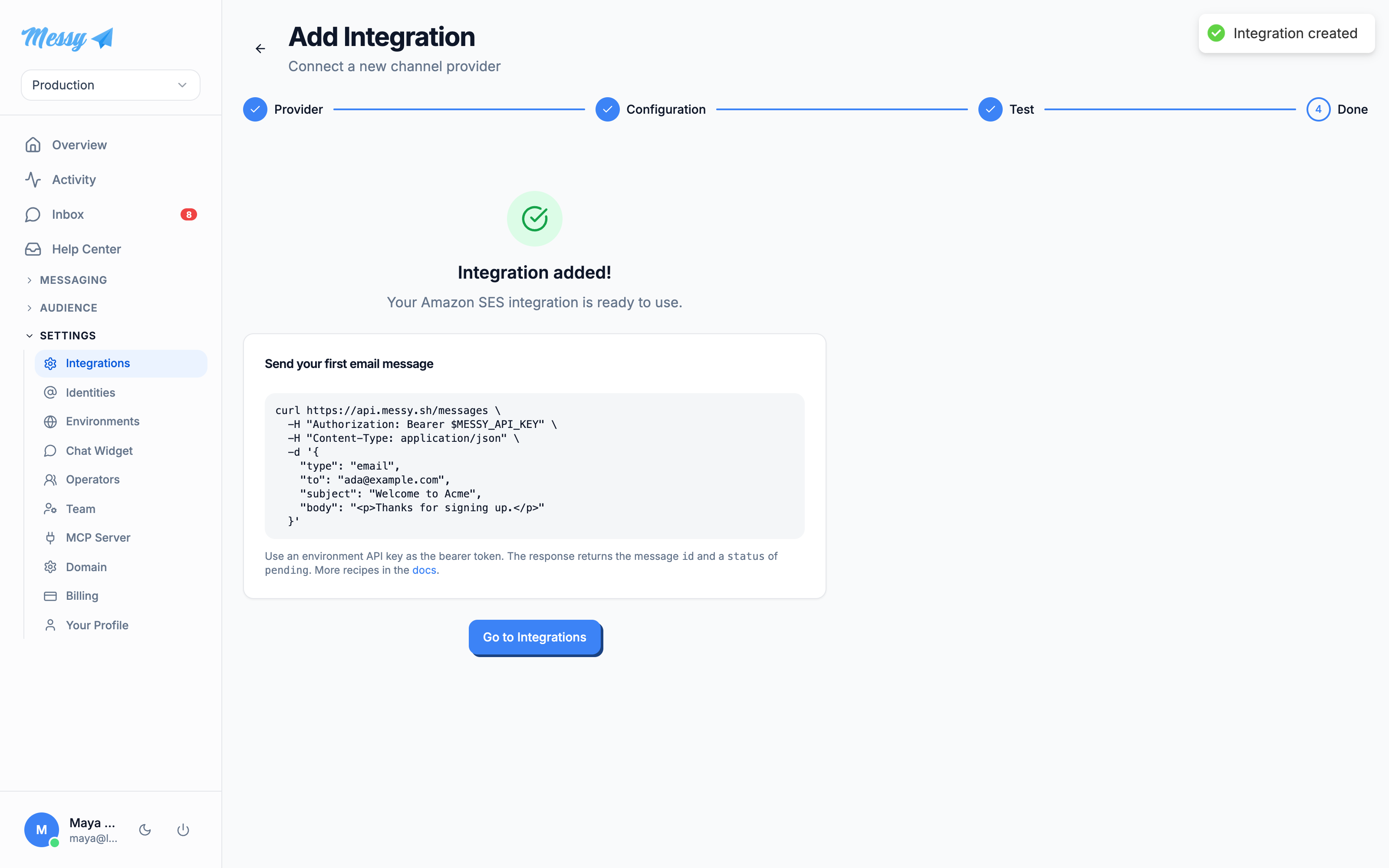
The final step confirms the integration and hands you a copy-paste curl for the first real send through it.
Connecting Meta (Facebook & Instagram)
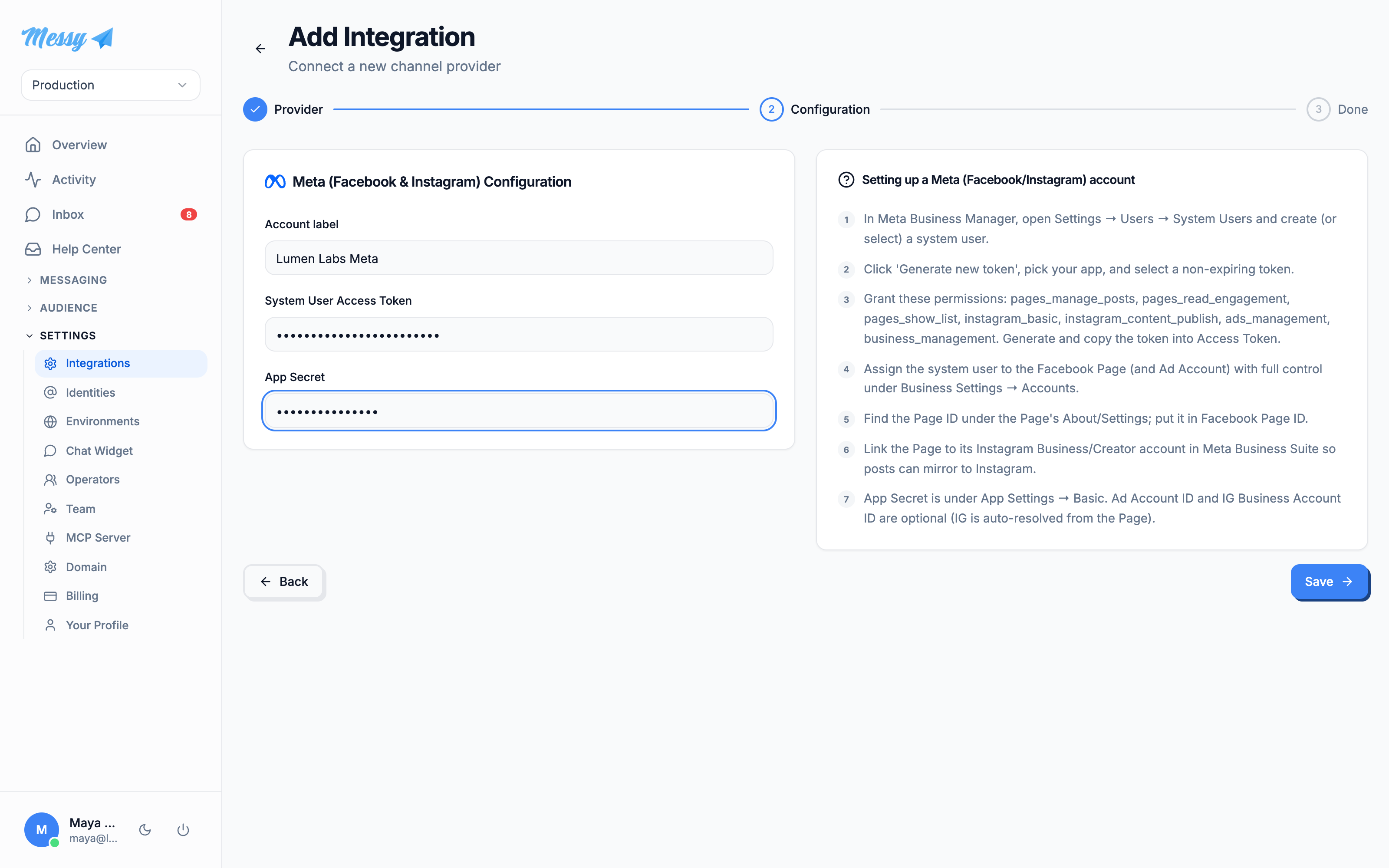
Social publishing follows the same wizard but with one twist: the integration stores only the credential (a Business system-user token that can reach every Page the Business owns). Which Page, Instagram account and ad account to publish to is chosen later, per region, under Socials. One credential can serve many regions.
The form takes a label (to tell credentials apart), the system-user access token and the app secret. The setup guide alongside lists the exact Business Manager steps and the permissions the token needs. There is no test step for social credentials; the wizard finishes after saving.
Customization options
Everything you can tune on the Integrations page, and what each option does:
| Field | Type | Description |
|---|---|---|
Environment | wizard | Scopes the integration to one environment, or account-wide when left on All environments. Environment-scoped integrations take precedence. |
Active toggle | card | Turns an integration on or off without deleting it. Inactive integrations are skipped when resolving a channel's provider. |
Notification emails | preferences | Which email integration handles transactional sends (POST /messages and template triggers). |
Campaign emails | preferences | Which email integration handles broadcasts and drips. Falls back to the notification integration when unset. |
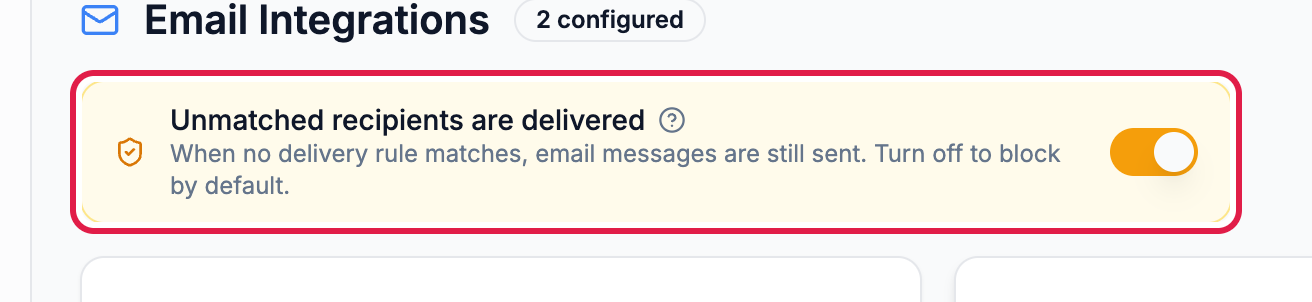
Default permission | per channel | What happens to a recipient no delivery rule matches: delivered (default) or blocked. Delivery rules always run first; this is only the fallback. |
Send test | card menu | One-off test delivery through a saved integration, same as the wizard's test step. |
Edit / Delete | card menu | Reopen the configuration form (secrets stay masked), or remove the integration entirely. |
Keeping bulk campaign traffic on a different provider than your transactional email protects the sending reputation your password resets depend on:

And the per-channel default permission is the safety net under your delivery rules. On a staging environment, switch it to block so only explicitly allowed recipients ever get a message:
Field reference
Every provider’s fields, in one place: Email: SES & SMTP, SMS & WhatsApp, Mobile & web push.