Templates & layouts
Write a message once, in Liquid, and trigger it by name for any channel. Layouts wrap your email templates in shared branding so you change the header in one place.
The template library
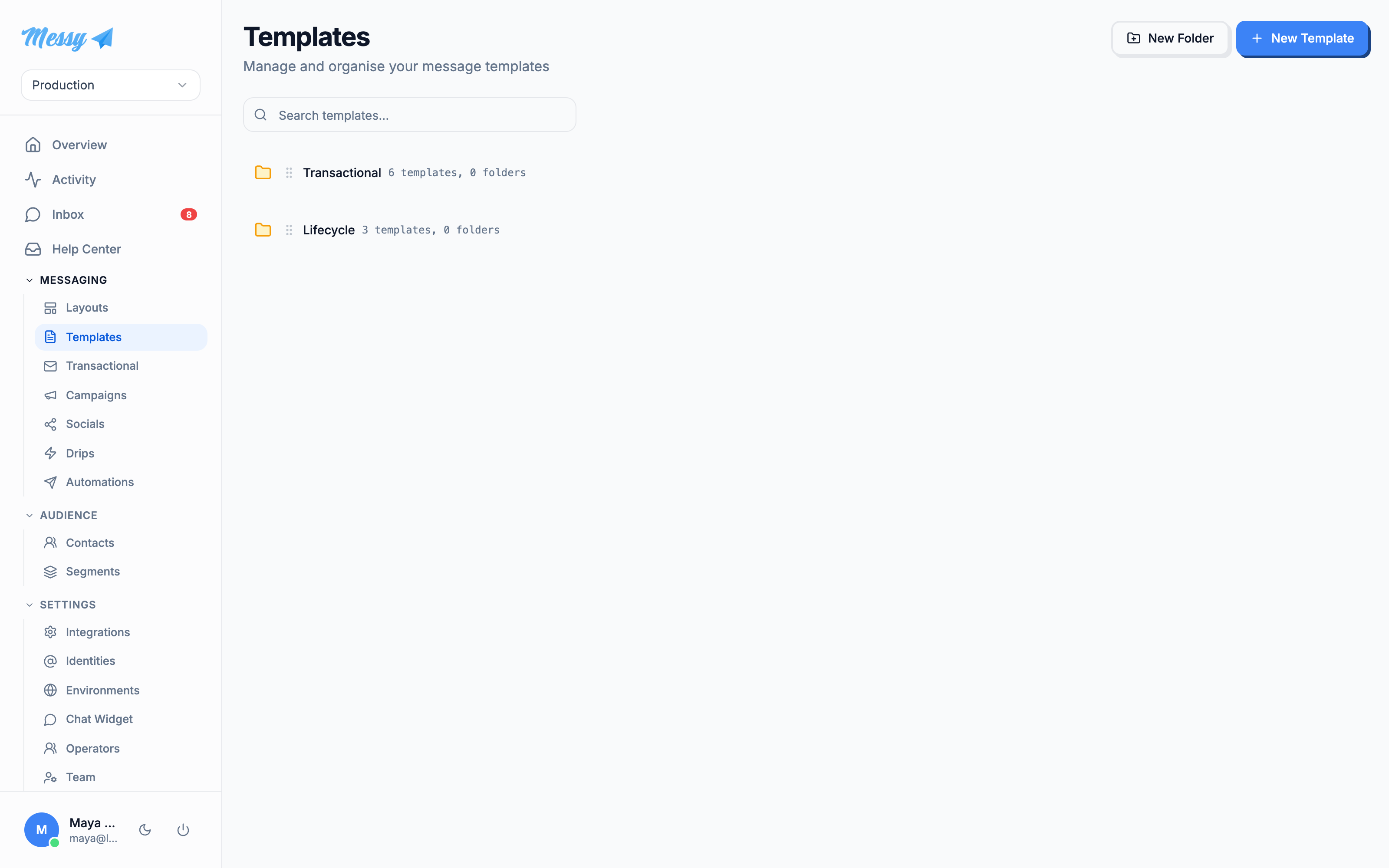
Open Templates under Messaging. Templates are organized into folders and tagged by channel; the search box flattens across every folder. Each row shows its channel, trigger key and folder.
1. Create a template
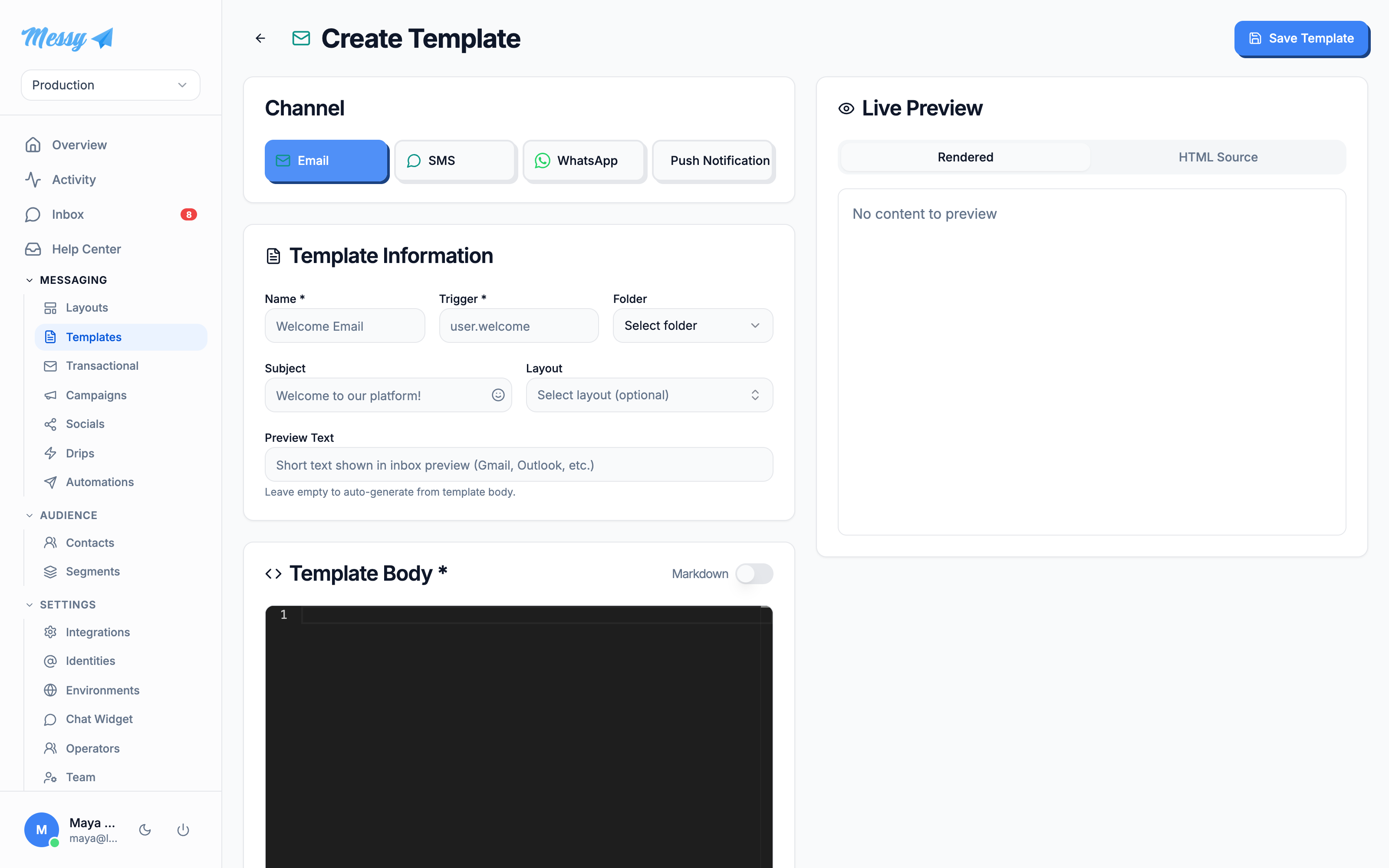
Click New Template. On the new-template screen, first pick a channel: Email, SMS, WhatsApp or Push Notification. The channel decides which fields appear (subject and layout are email-only) and can only be set at creation.

Give it a Name and a Trigger. The trigger is the event key you fire the template by from the API (for example user.welcome), unique per environment and channel. For email, set a subject, optionally choose a layout, and write a preview line.
2. Write the body
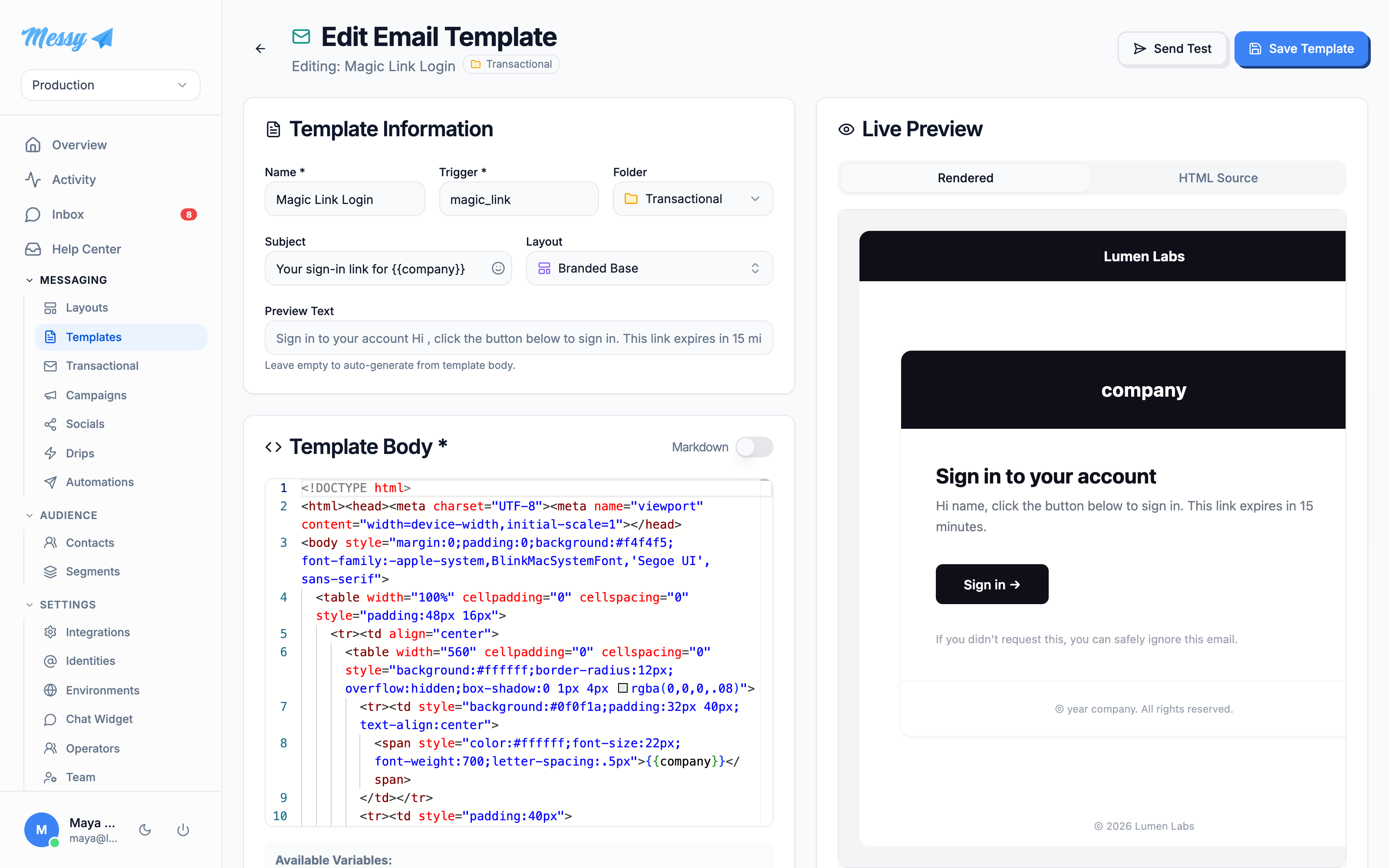
The body editor is full Liquid with a live preview beside it. Reference customer and account data with placeholders like {{ user.name }}, {{ user.email }}, {{ company.name }} and any {{ custom.* }} attribute you have set on contacts. Toggle Markdown to write email bodies in Markdown instead of HTML. Click Save Template; Send Test lets you fire it to yourself first.
POST /messages with a trigger and a data object. See Templates & triggers.Layouts
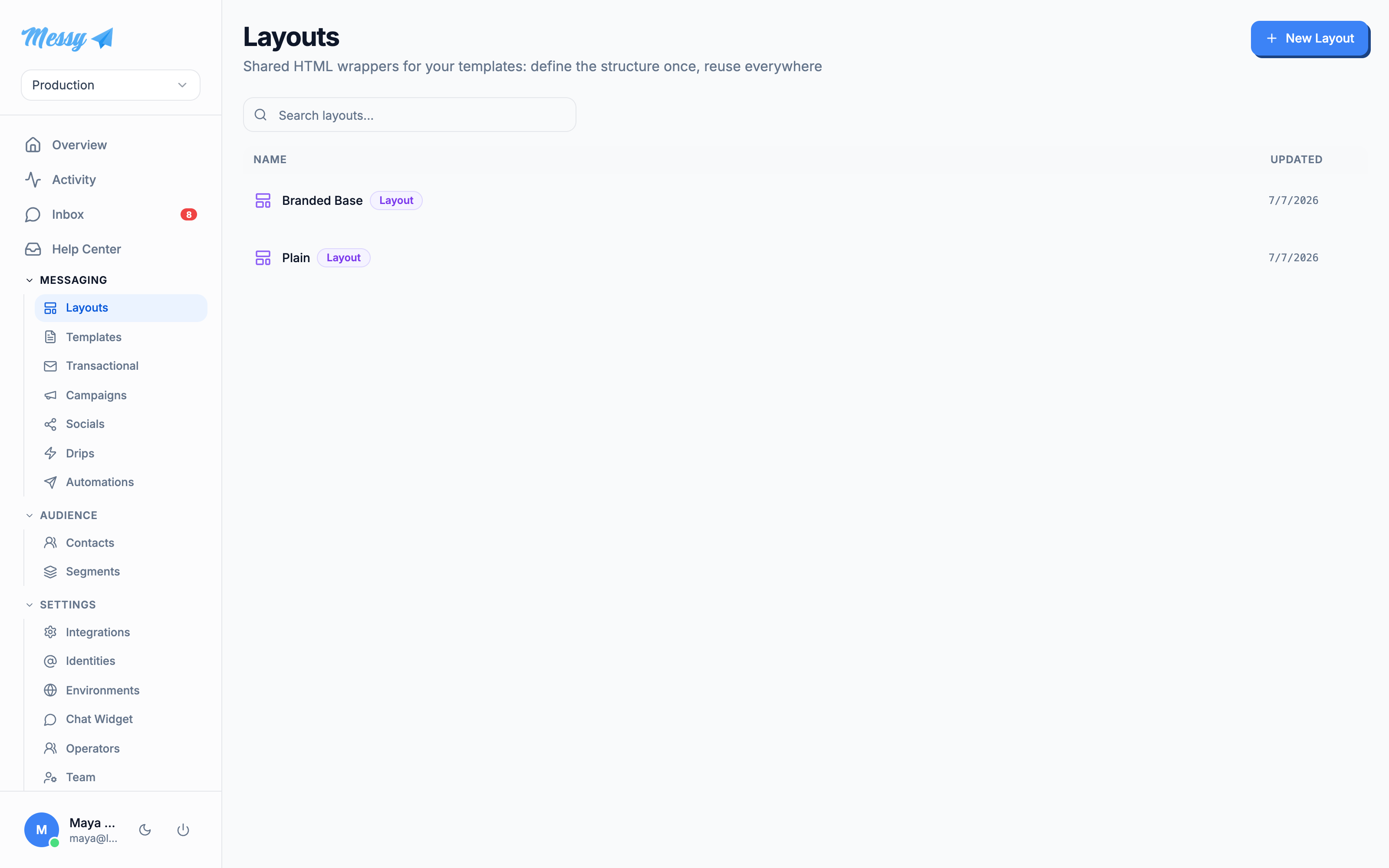
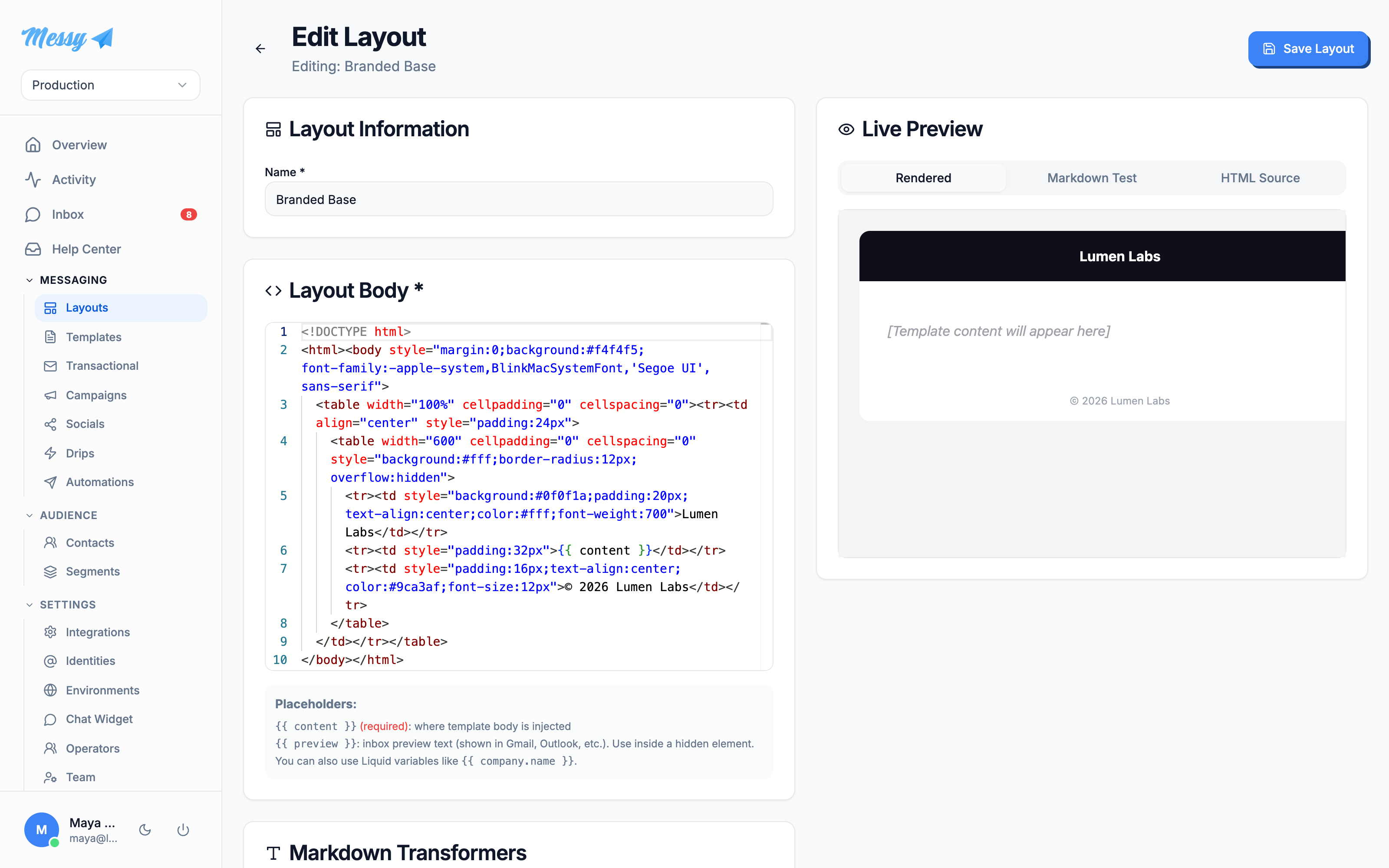
A layout is the shared HTML shell your email templates render inside: header, footer, brand colors, the parts you do not want to repeat in every template. Open Layouts to see the ones you have.
Edit a layout and the body must contain the {{ content }} placeholder, which is where each template renders. You can also use {{ preview }} and {{ company.name }}. Markdown transformers let you define how each Markdown element (headings, links, and so on) becomes email-safe HTML, so a Markdown template inherits your styling automatically.
Customization options
| Field | Type | Description |
|---|---|---|
Channel | template | Email, SMS, WhatsApp or Push. Sets which fields apply and the body language. Fixed after creation. |
Name | template | Human-readable name for the library. |
Trigger | template | Event key you fire the template by from the API. Unique per environment + channel. |
Folder | template | Organizes the template; supports inline folder creation. |
Subject / Title | email / push | Email subject line or push title. Supports Liquid and emoji. |
Layout | Shared HTML shell the body renders inside. Optional. | |
Preview Text | Inbox preview snippet. Auto-generated from the body if left blank. | |
Markdown toggle | Write the body in Markdown instead of HTML; forced on when the chosen layout defines transformers. | |
Layout body | layout | The HTML shell. Must contain {{ content }}; may use {{ preview }} and {{ company.name }}. |
Markdown transformers | layout | Per-element HTML snippets that style Markdown output (headings, bold, links, etc.). |